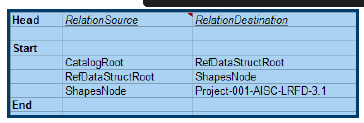
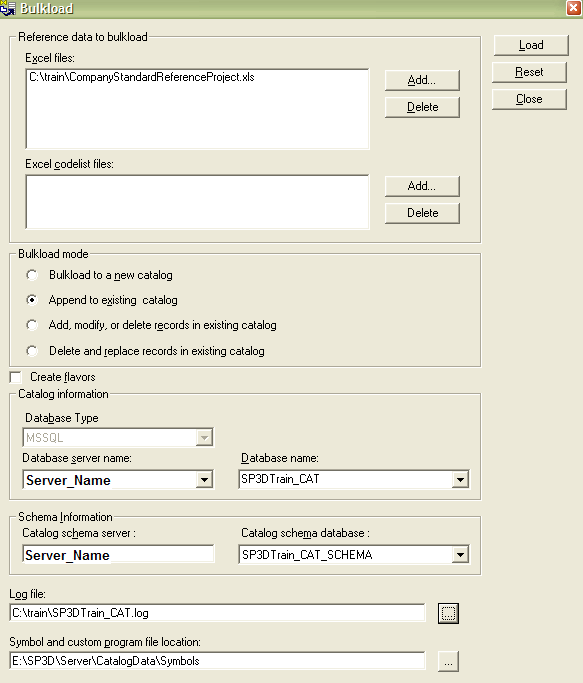
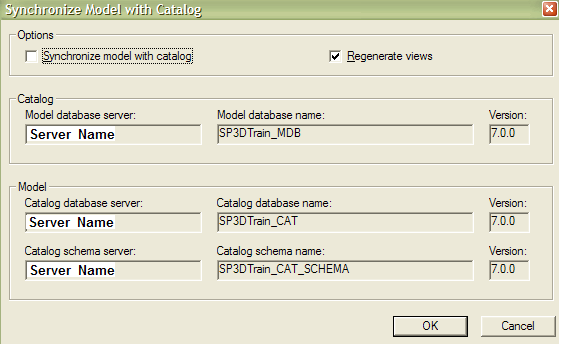
在3D项目中,使用结构模块建模在选择所需型钢时,默认环境将所有的型材放在了一起,这在使用时有些干扰。之前,我们介绍过相关搜索功能《Cross Section搜索功能》,此外,在结构参考库的管理中,软件支持“公司级”或者“项目级”的文件夹管理。将常用的型材截面进行分组管理。以下为相关练习册中的步骤说明: Lab 1 – Creating Company Reference StandardObjectiveAfter completing this lab, you will be able to:Create a new Reference Standard Library1. Open the StructCrossSections-AISC-LRFD-3.1.xls Excel Workbook located in <InstallDirectory>SmartPlant3D CatalogDataBulkLoadDataFiles.2. Copy the CustomInterfaces, W, C, ReferenceStandard, ClassNodeType, R-Hierarchy and theGUIDs sheets into a new workbook.3. Save the new workbook as CompanyStandardReferenceProject.xls4. Go the ReferenceStandard sheet and add/edit the following entry.5. Go the R-Hierarchy sheet and add the following entry.6. Go to the W, and C sheets and change the Reference Standard from AISC-LRFD-3.1 toProject-001-AISC-LRFD-3.17. Go to the W sheet and add only the following sections:W24X55W16X26W12X40W12X30W12X22W10X266W10X228. Go to the C sheet and add only the following sections:C8x11.5C5x99. Save the changes and use the Bulkload Utility to load the new reference standard library.Make sure to select the Append Mode. Find your catalog server name and database/schemanames from the pull down menus. Obtain these names from the instructor.10. Hit “Load” button. Once the bulkload process is complete, review the log file.11. Run the Project Management Task. Select the Model in the hierarchy.12. Select Tools -> Synchronize Model with the Catalog.13. Uncheck the Synchronize Model with the Catalog option.Note: You just need to update the views in the model.14. Hit “OK” Button.15. Once the process is complete. Right click on the model and select regenerate the reportdatabase.16. Hit “OK” Button.17. Once the process is complete. Go to the Structure Task and place the W section from the company reference standard library.



您需要登录 或注册 后才可以发表评论。